
RAG - Retrieval-Augmented Generation
Dieser Inhalt ist noch nicht in deiner Sprache verfügbar.
Askimo App includes powerful RAG (Retrieval-Augmented Generation) capabilities that let your AI conversations access and reference your local files automatically. Whether you’re a developer working with code, a writer managing documents, or a researcher organizing data, Askimo’s Lucene-powered indexing brings your knowledge into the chat.
There are two ways to bring your files into a conversation:
- Resource Collections: reusable, on-demand knowledge sources you can attach to any chat session, project or not. This is the recommended starting point for most conversations.
- Projects: a workspace that groups related chat sessions together (e.g. all conversations about one codebase or client). Indexing a project’s directory for RAG is a bonus on top of that grouping, not the primary reason to create one.
What is RAG?
Section titled “What is RAG?”RAG (Retrieval-Augmented Generation) enhances AI conversations by:
- Accessing Your Files: AI can reference your local documents, code, research papers, or any other files
- Accurate Responses: Answers are grounded in your actual content, not just the AI’s training data
- Privacy-First: All indexing and retrieval happens locally on your machine
- Fast Search: Lucene-powered indexing provides lightning-fast retrieval across thousands of files
Resource Collections vs. Projects: Which Should You Use?
Section titled “Resource Collections vs. Projects: Which Should You Use?”Both Resource Collections and Projects use the exact same indexing and retrieval engine under the hood (JVector + Lucene hybrid search). The difference is purely about organization and scope:
| Resource Collections | Projects | |
|---|---|---|
| Purpose | Reusable knowledge source you attach on demand | Groups related chat sessions together |
| Where it works | Any chat session, with or without a project | Only chats created inside that project |
| Best for | “I want to ask about these docs/files right now” | “All my conversations about this codebase/client in one place” |
| Selection | Toggle a collection chip in the chat composer (one at a time) | Automatic for every chat created inside the project |
| Reuse | One collection can be used across many unrelated chats | A project’s files are scoped to that project’s chats only |
How RAG Works in Askimo
Section titled “How RAG Works in Askimo”Here’s how Askimo processes and retrieves information from your indexed files, whether they come from a Project or a Resource Collection:
graph TB    subgraph "1. Ingestion Process"        A[Project or Collection Files] --> B[File Parser]        B --> C{File Type Detection}        C -->|Code| D[Code Parser]        C -->|PDF| E[PDF Text Extractor]        C -->|Office Docs| F[Office Parser]        C -->|Text/Markdown| G[Text Parser]        D --> H[Text Chunks]        E --> H        F --> H        G --> H    end
    subgraph "2. Indexing & Storage"        H --> I[Document Chunker<br/>256-2048 tokens]        I --> J[Embedding Generator]        J --> K[(JVector Store<br/>Vector Embeddings)]        J --> L[(Lucene Index<br/>Full-Text Search)]    end
    subgraph "3. Query & Retrieval"        M[User Query] --> N[Query Embedding]        N --> O[ContentRetriever]        O --> K        O --> L        K --> P[Vector Similarity Search]        L --> Q[Keyword Search]        P --> R[Top-K Results]        Q --> R    end
    subgraph "4. Context Injection"        R --> S[ContentInjector]        S --> T[Rank & Filter Results]        T --> U[Context Window Manager]        U --> V[Inject into AI Prompt]        V --> W[AI Model]        W --> X[Enhanced Response]    end
    style K fill:#e1f5ff    style L fill:#e1f5ff    style O fill:#fff4e6    style S fill:#f3e8ff    style W fill:#e8f5e9
The Process:
- Ingestion: Files are parsed based on their type (code, PDF, Office docs, text)
- Indexing: Content is split into chunks, embedded as vectors (JVector), and indexed for full-text search (Lucene)
- Retrieval: When you ask a question, ContentRetriever searches both vector embeddings and full-text index
- Injection: ContentInjector ranks results, manages context window, and injects relevant chunks into your AI conversation
All of this happens locally on your machine, no data ever leaves your computer.
Using Resource Collections (On-Demand RAG for Any Chat)
Section titled “Using Resource Collections (On-Demand RAG for Any Chat)”Resource Collections are the fastest way to bring knowledge into a conversation, no project setup required. Create one, index a few files or folders, and attach it to whichever chat needs it. They work the same in a brand-new chat, an existing chat, or a chat that already belongs to a project.
Step 1: Create a Collection
Section titled “Step 1: Create a Collection”- Open the Collections Sidebar
- Click “Resource Collections” in the sidebar
- Create a New Collection
- Click “+ New Collection”
- Give it a name (e.g. “HR Handbook”, “Tech Docs”, “React Best Practices”)
- Optionally add a description
- Add Knowledge Sources
- Add local files, folders, or URLs to the collection
- Indexing starts automatically, using the same engine as Projects (JVector + Lucene)
Step 2: Attach a Collection to a Chat
Section titled “Step 2: Attach a Collection to a Chat”- Open any chat session (project or not)
- In the message composer, click the Collections chip
- Select the collection you want to use for this conversation
- Send your message, the AI now retrieves context from that collection
Projects: Grouping Related Chats (with Optional RAG)
Section titled “Projects: Grouping Related Chats (with Optional RAG)”Projects exist first and foremost to group related conversations together, e.g. every chat about a particular codebase, client, or long-running piece of work in one place, instead of scattered across your session list. Indexing the project’s directory for RAG is a convenient bonus that comes along for free, not the main reason to reach for a project.
Step 1: Create a New Project
Section titled “Step 1: Create a New Project”-
Open Project Manager
- Click the “Projects” icon in the sidebar
- Or use keyboard shortcut:
⌘/Ctrl + P
-
Create New Project
- Click “+ New Project” button
- Enter a project name (e.g., “My Web App”, “Research Papers”, “Novel Draft”, “Marketing Documents”)
- Optionally add a description
-
Select Project Directory
- Click “Select Folder” to choose the project root directory
- This directory and its subdirectories will be indexed automatically
Step 2: Automatic Indexing
Section titled “Step 2: Automatic Indexing”Indexing starts automatically when you create a project:
- Askimo detects the project type (Gradle, Maven, Python, Node.js, etc.)
- Indexing begins immediately in the background
- Monitor indexing progress in the status bar
- Wait for indexing to complete (typically 10-60 seconds depending on project size)
What Gets Indexed:
Askimo automatically indexes:
- All text-based source files
- PDF files (text content extracted)
- Microsoft Office documents (.docx, .xlsx, .pptx)
- OpenOffice documents (.odt, .ods, .odp)
- Email files (.eml, .msg)
- Documentation files (.md, .txt, .rst, etc.)
- Configuration files (.json, .yaml, .xml, etc.)
What Gets Excluded:
Askimo intelligently excludes:
- Common build artifacts (build/, dist/, target/, .gradle/, etc.)
- Dependencies (node_modules/, vendor/, venv/, etc.)
- Files listed in
.gitignore - Binary files (except supported document types)
- Files larger than 5 MB
- IDE-specific directories (.idea/, .vscode/, etc.)
Using RAG in Project Chat Sessions
Section titled “Using RAG in Project Chat Sessions”Creating a New Chat in a Project
Section titled “Creating a New Chat in a Project”When you create a chat session within a project, RAG is automatically enabled to provide context from your indexed files, no Collections chip to configure.
-
Navigate to Your Project
- Open the project in the sidebar
- Your indexed project is ready to use
-
Start a New Chat
- Click the “+” button within the project
- Or use
⌘/Ctrl + Nwhile in project view
-
Chat with Context
- RAG is enabled by default - no need to toggle!
- The AI automatically retrieves relevant context from your indexed files
- A small indicator shows which project’s knowledge is active
Moving Existing Chats to Projects
Section titled “Moving Existing Chats to Projects”You can organize existing chat sessions by moving them into projects. Once moved, the project’s RAG becomes the chat’s active knowledge source automatically.
-
Select Chat Session
- Find the chat you want to move in the sidebar
-
Move to Project
- Right-click the chat in the sidebar
- Select “Move to Project”
- Choose the target project
-
RAG Automatically Enabled
- Once moved, RAG is automatically enabled for this chat
- The AI now has access to the project’s knowledge base
- The chat will use the project’s indexed files for context
Managing RAG Index
Section titled “Managing RAG Index”The same indexing workflow applies to both Projects and Resource Collections: the steps below apply equally to a Project or a Collection’s knowledge sources.
Re-indexing
Section titled “Re-indexing”When you make significant changes to a project’s directory or a collection’s knowledge sources:
- Open the project (or collection) and click “Re-index”
- Wait for indexing to complete
When to Re-index:
- After major code refactoring
- When adding/removing large numbers of files
- If search results seem outdated
Incremental Updates
Section titled “Incremental Updates”Askimo automatically detects file changes and updates the index:
- File Modified: Re-indexes the changed file
- File Added: Indexes the new file
- File Deleted: Removes from index
Index Storage
Section titled “Index Storage”RAG indexes are stored locally on your machine, under your Askimo data directory (e.g. ~/.askimo/personal/projects/<id>/index/ for a Project), keyed by the project’s or collection’s own ID:
- Size: Typically 10-30% of your source files
- Format: Lucene index format
Embedding Model Configuration
Section titled “Embedding Model Configuration”RAG (Retrieval-Augmented Generation) relies on embedding models to convert your documents and queries into vector representations. These embeddings enable semantic search, allowing the AI to find relevant content based on meaning rather than just keyword matching.
Why Embedding Models Matter
Section titled “Why Embedding Models Matter”When you create a project with RAG:
- Document Ingestion: Your files are split into chunks and converted into numerical vectors (embeddings) using an embedding model
- Semantic Search: When you ask a question, your query is also converted into an embedding
- Similarity Matching: The system finds the most semantically similar document chunks by comparing vector embeddings
- Context Injection: Relevant chunks are injected into the AI’s context window to generate accurate, grounded responses
The quality and compatibility of the embedding model directly impact RAG’s ability to retrieve relevant information from your project files.
Selecting an Embedding Model
Section titled “Selecting an Embedding Model”Askimo lets you choose the embedding model for each provider. When you open the embedding model selector in Settings, it lists all models available from that provider, including both chat models and embedding models.
Suggested starting points by provider:
| Provider | Recommended Embedding Model |
|---|---|
| OpenAI | text-embedding-3-small (fast & affordable) or text-embedding-3-large (higher quality) |
| Google Gemini | text-embedding-004 or gemini-embedding-exp-03-07 |
| Ollama | nomic-embed-text:latest (pull first: ollama pull nomic-embed-text) |
| LM Studio / LocalAI | Search for nomic-embed-text or mxbai-embed-large in the model browser |
| Docker AI | ai/qwen3-embedding:0.6B-F16 |
Setting Up Local Embedding Models
Section titled “Setting Up Local Embedding Models”For local AI providers (Ollama, LM Studio, LocalAI, Docker AI), you must manually pull the embedding model before using RAG:
For Ollama:
ollama pull nomic-embed-text:latestFor LM Studio:
- Open LM Studio
- Search for “nomic-embed-text”
- Download the model
For LocalAI:
# Pull the model using LocalAI's CLI or APIcurl http://localhost:8080/models/apply -H "Content-Type: application/json" -d '{ "id": "nomic-embed-text:latest"}'For Docker AI:
# Pull the Qwen embedding modeldocker exec -it <container-name> pull ai/qwen3-embedding:0.6B-F16Customizing Embedding Models
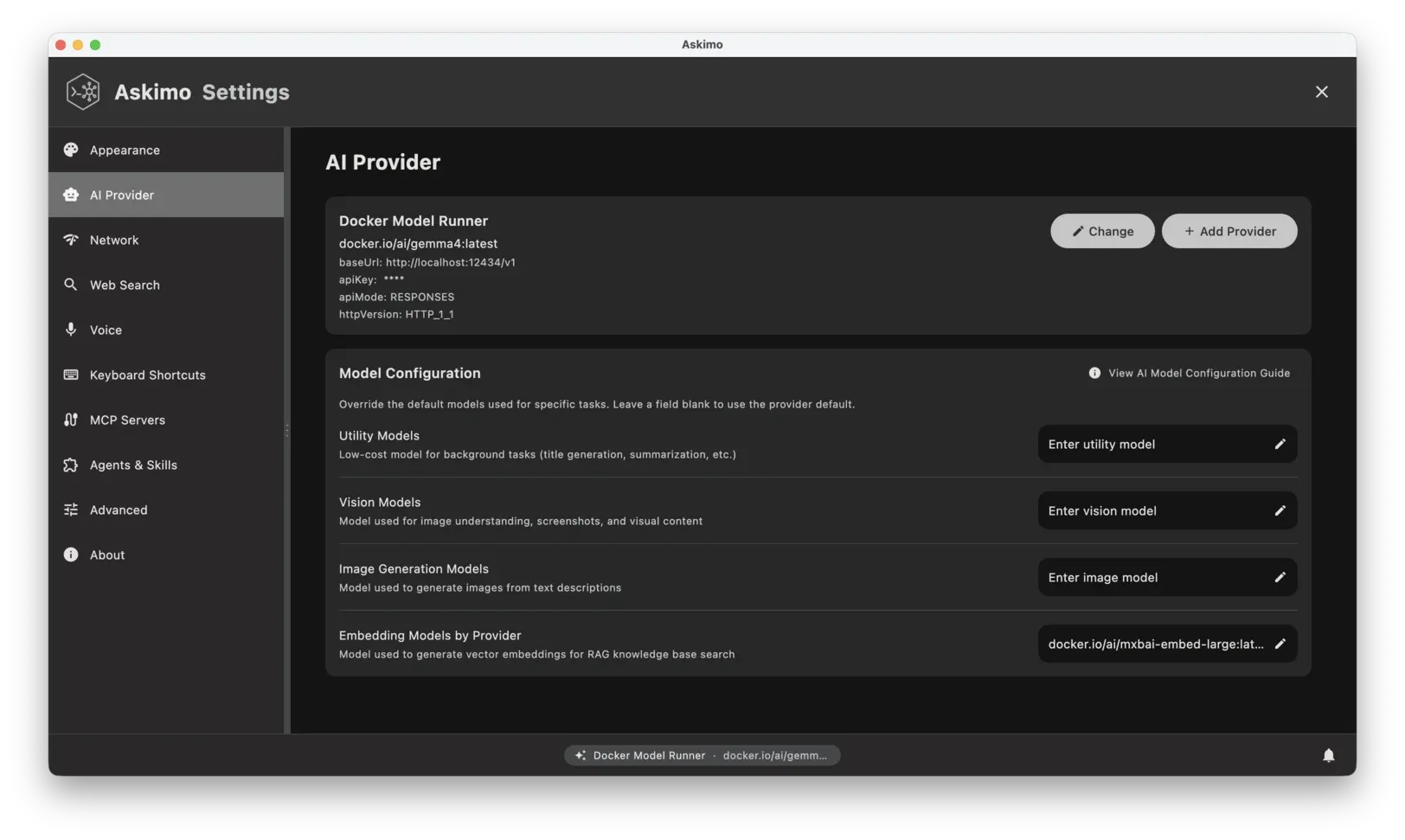
Section titled “Customizing Embedding Models”You can change the default embedding model for any provider:
-
Open Settings
- Go to Settings (⌘/Ctrl + ,)
-
Navigate to RAG Configuration
- Select AI Provider tab
- Scroll down to Embeddings Model By Provider
Tips for finding the right model:
- In the model dropdown, type
embedin the search box to filter out chat models and show only embedding models - Pick the most recent version available, newer embedding models consistently outperform older ones
- For local providers, make sure the model is already pulled/downloaded before selecting it here (see “Setting Up Local Embedding Models” above)
Example selections:
| Provider | Model to select |
|---|---|
| OpenAI | text-embedding-3-large (higher quality) or text-embedding-3-small (faster/cheaper) |
| Gemini | text-embedding-004 or gemini-embedding-exp-03-07 |
| Ollama | mxbai-embed-large:latest (alternative to nomic-embed-text) |
Verifying Your Embedding Model
Section titled “Verifying Your Embedding Model”Askimo automatically validates your embedding model when you:
- Create a new Project or Resource Collection with knowledge sources, or
- Re-index an existing Project or Collection
During the indexing process, Askimo will check if the configured embedding model is available and valid. If the embedding model is invalid or unavailable, you’ll receive a clear error notification indicating the issue.
Common validation errors:
- Local providers (Ollama, LM Studio, LocalAI, Docker AI): Model not downloaded/pulled
- Cloud providers (OpenAI, Gemini): Invalid API key or model name
- Anthropic/X.AI users: No embedding model configured (these providers don’t offer embedding APIs)
If you encounter an embedding model error:
- Review the error message to identify the specific issue
- For local providers: Make sure you’ve manually pulled the embedding model (see “Setting Up Local Embedding Models” above)
- For cloud providers: Verify your API key is valid and the model name is correct
- Re-attempt indexing: After fixing the issue, try creating a new project or re-indexing your existing project
- Still having issues? Post a detailed issue report on the Askimo GitHub Issues page including:
- Your AI provider
- The embedding model name you’re using
- The exact error message
- Your operating system
Indexing Is Slow
Section titled “Indexing Is Slow”If indexing takes much longer than expected, the most common cause is a low Embedding Batch Size. By default, Askimo sends 50 text segments per request to the embedding model, a safe value for local models but conservative for remote providers.
To speed up indexing with a remote provider (OpenAI, Gemini):
- Go to Settings → Advanced
- Find Embedding Batch Size under the RAG / Indexing section
- Increase it to a value between 100–500
- Re-index your project
Other things to check if indexing is slow:
- Project size: Projects with tens of thousands of files will take longer on first index. Subsequent updates are incremental and much faster.
- Concurrent indexing threads: In Settings → Advanced, you can increase the number of concurrent indexing threads if your machine has spare CPU cores.
- Max file size: Reducing the Max File Size limit skips large files that generate many chunks and slow down indexing.
Supported File Types
Section titled “Supported File Types”Askimo can index a wide variety of file types:
Source Code Files:
.java,.kt,.js,.ts,.jsx,.tsx.py,.rb,.go,.rs,.c,.cpp,.h,.hpp.cs,.php,.swift,.scala,.clj.sql,.sh,.bash,.ps1
Documentation Files:
.md,.mdx,.txt,.rst,.adoc,.org- PDF files (text content extracted)
Office Documents:
- Microsoft Office:
.docx,.xlsx,.pptx,.doc,.xls,.ppt - OpenOffice:
.odt,.ods,.odp
Email Files:
.eml,.msg
Configuration & Data Files:
.json,.yaml,.yml,.toml,.ini.xml,.csv,.properties
Build & Project Files:
pom.xml,build.gradle,package.json,requirements.txtCargo.toml,go.mod,composer.json
Automatically Detected Project Types:
- Java: Maven (
pom.xml), Gradle (build.gradle,settings.gradle) - JavaScript/TypeScript: Node.js (
package.json), npm, yarn, pnpm - Python: pip (
requirements.txt), Poetry (pyproject.toml), virtualenv - Go: Go modules (
go.mod,go.sum) - Rust: Cargo (
Cargo.toml) - PHP: Composer (
composer.json) - Ruby: Bundler (
Gemfile) - .NET: NuGet, MSBuild projects
Privacy & Security
Section titled “Privacy & Security”Local-Only Processing
Section titled “Local-Only Processing”All RAG operations happen locally on your machine:
- No Data Upload: Your code never leaves your computer
- No Cloud Dependencies: Works completely offline
- Secure Storage: Indexes stored in your local Askimo directory
See RAG in Action
Section titled “See RAG in Action”- Chat with your documents using Ollama & RAG - Step-by-step guide with real examples: research papers, company policies, writing projects
- Askimo Features: RAG section - Visual overview of what RAG enables in the desktop app