

Voice - Speech-to-Text Dictation and Text-to-Speech Playback
Esta página aún no está disponible en tu idioma.
Voice adds two independent capabilities to the chat experience: speech-to-text (STT) dictation, which transcribes your spoken words directly into the chat input, and text-to-speech (TTS) playback, which reads AI responses aloud. Both are opt-in and disabled by default - enabling Voice adds zero UI clutter for users who don’t need it.
Voice is a convenience layer on top of the existing chat pipeline, resolved independently of the active chat provider - you can chat with Gemini while dictating with OpenAI Whisper, or run a fully local/offline STT+TTS stack with no cloud dependency at all.
Supported Providers
Section titled “Supported Providers”| Provider | Direction | Requires | Notes |
|---|---|---|---|
| OpenAI | STT + TTS | OpenAI API key | Whisper for transcription, OpenAI TTS for playback. Cloud-based, highest quality out of the box. |
| Local Whisper (in-process) | STT only | A one-time model download (no server to run) | Runs whisper.cpp directly inside Askimo via the Java Foreign Function & Memory API - no separate process to install or keep running. Recommended if your machine can handle a local model (a modern CPU/GPU and a few GB of free disk space) and you don’t have an OpenAI account: transcription quality is very good, it’s completely free, fully offline, and has the lowest latency of any option since there’s no network hop. |
| Local (whisper.cpp server) | STT only | A self-hosted whisper.cpp / faster-whisper server | Talks to an OpenAI-compatible /v1/audio/transcriptions endpoint. Free, fully offline-capable - useful if you’d rather run the model on a different machine (e.g. a GPU box on your network) than on the one running Askimo. |
| Local (Piper) | TTS only | A self-hosted Piper HTTP server | Free, fully offline-capable text-to-speech. |
| System (built-in) | TTS only | Nothing - uses your OS | Shells out to the operating system’s built-in voice (macOS say, Windows Speech, espeak-ng on Linux). Free and zero setup, but more robotic-sounding than OpenAI/Piper. |
You can mix and match: for example, the in-process Local Whisper for STT paired with the System voice for TTS gives you a fully free, zero-API-key setup with no servers to manage at all. Or pair OpenAI for STT with a local Piper server for TTS, so playback never leaves your machine while dictation still uses Whisper’s accuracy.
Requires an OpenAI API key. If you already have one configured for an OPENAI chat provider instance, Settings > Voice offers a Reuse existing key shortcut so you don’t have to paste it twice - Voice’s key is stored separately from any chat provider key, since you may want to dictate/listen with OpenAI while chatting with a different provider entirely.
No server to install or run - pick a model size and let Askimo download it once:
Settings → Voice → Speech-to-Text provider → Local (whisper.cpp, in-process)Model size: Fast / Balanced / Best → DownloadSee Setting Up Local Whisper below for the full walkthrough, including model sizes and live captions.
Run a whisper.cpp or faster-whisper server that exposes an OpenAI-compatible /v1/audio/transcriptions endpoint, then point Askimo at it:
Settings → Voice → Speech-to-Text provider → Local (whisper.cpp server)Local STT endpoint: http://localhost:8081No API key needed - transcription happens entirely on your machine (or wherever you host the server).
Run a Piper HTTP server, then point Askimo at it:
Settings → Voice → Text-to-Speech provider → Local (Piper)Local TTS endpoint: http://localhost:5000The voice field accepts a Piper voice id (e.g. en_US-lessac-medium) - whatever model you’ve installed on the Piper server.
No configuration needed - just select it:
Settings → Voice → Text-to-Speech provider → System (built-in)Askimo shells out to your OS’s own voice engine (macOS say, Windows Speech via PowerShell, espeak-ng on Linux - installable via your package manager if it’s missing). Free and fully offline, with no API key or server to configure, though the voice is more robotic than OpenAI’s or Piper’s neural voices.
Enabling Voice
Section titled “Enabling Voice”- Open Settings → Voice.
- Toggle Enabled on. The dictation and playback controls appear in chat once enabled.
- Pick a Speech-to-Text provider and a Text-to-Speech provider (they don’t have to match).
- If either provider is OpenAI, paste an API key (or reuse an existing one from a configured OpenAI chat provider instance).
- If either provider is local, fill in its endpoint URL.
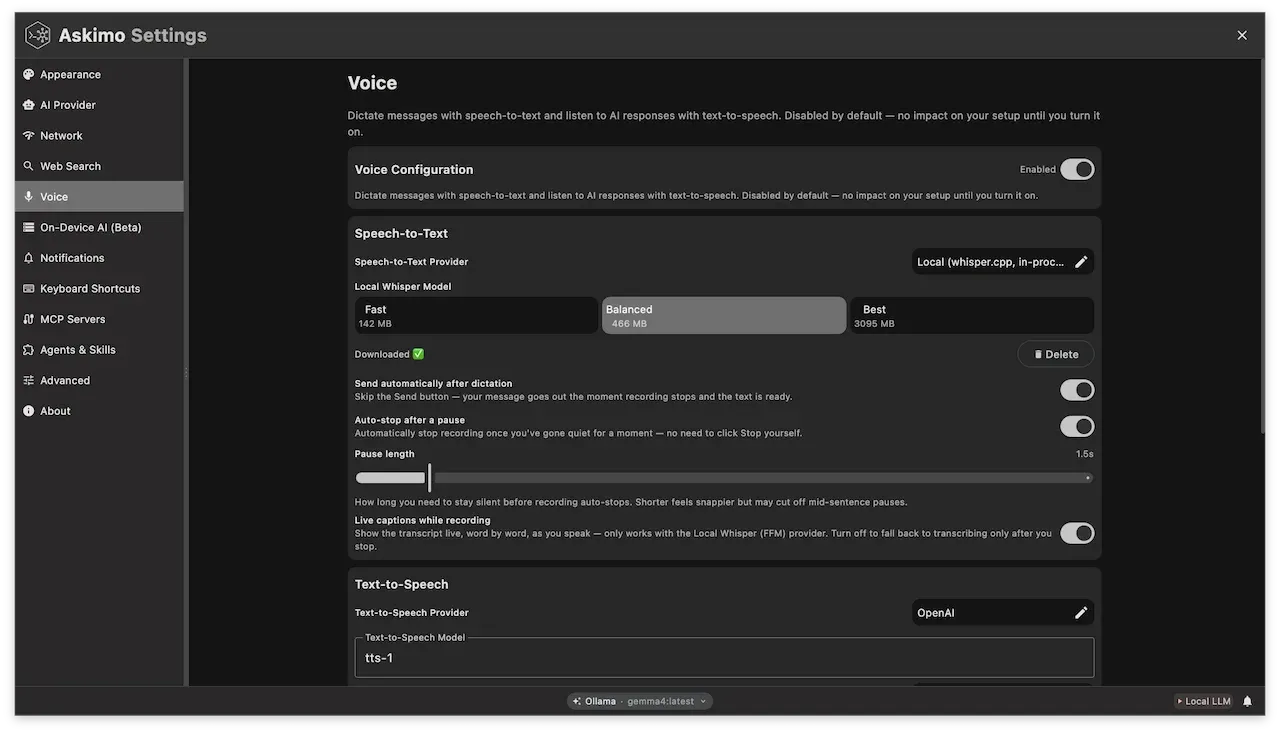
Voice stays completely hidden from the chat UI until you turn it on - existing users see no change unless they opt in.
Setting Up Local Whisper (No Server Required)
Section titled “Setting Up Local Whisper (No Server Required)”The Local (whisper.cpp, in-process) provider runs entirely inside Askimo - there’s no separate server to install, configure, or keep running. The only one-time setup step is downloading a model file:
- Go to Settings → Voice and set Speech-to-Text provider to Local (whisper.cpp, in-process).
- Pick a model size - Fast (~142 MB), Balanced (~466 MB), or Best (~3.1 GB). Larger models are more accurate but use more disk space, memory, and CPU/GPU per transcription.
- Click Download. Askimo fetches the model file and stores it locally so it survives app updates and reinstalls.
- Once the download finishes, the provider is ready to use - no API key, account, or network connection required for transcription from this point on.
Dictation (Speech-to-Text)
Section titled “Dictation (Speech-to-Text)”Once enabled, a microphone button appears next to Send in the chat input.
- Click the 🎤 button (or press the toggle recording shortcut) to start recording. A pulsing red dot, an elapsed-time counter, and a live waveform reflecting your mic level appear next to the button while recording.
- Speak your message.
- Click the button again (or press the shortcut again) to stop. The button switches to a Transcribing… state with a spinner while the audio is sent to your chosen STT provider.
- The transcript is inserted into the chat input, appended to any text already there, ready to review and send.
Recording automatically stops after 120 seconds as a safety cap - the elapsed-time counter turns red for the last 10 seconds as a warning, so a forgotten open mic can’t run indefinitely.
Auto-Send Transcript
Section titled “Auto-Send Transcript”By default, the transcript is inserted into the input field for you to review before sending. Turn on Auto-send transcript in Settings → Voice to skip that review step entirely: as soon as transcription finishes, the message is sent automatically - a fully hands-free record → transcribe → send flow.
Keyboard Shortcut
Section titled “Keyboard Shortcut”| Action | Shortcut (macOS) | Shortcut (Windows/Linux) |
|---|---|---|
| Start/stop dictation | Cmd+Shift+M |
Ctrl+Shift+M |
The shortcut works identically to clicking the microphone button, and is shown in the button’s tooltip for quick reference.
Alternative: Your OS’s Built-in Dictation
Section titled “Alternative: Your OS’s Built-in Dictation”If you want a dictation option that needs zero setup and no model download at all, the chat input is a standard text field, so your operating system’s own dictation feature works in it directly - independently of Askimo’s Voice settings:
- macOS: press
fntwice (or Edit → Start Dictation) while the chat input is focused. - Windows: press
Win+Hto open Windows Voice Typing while the chat input is focused.
This is the cheapest possible option since it bypasses Askimo’s Voice pipeline entirely - no API key, no local model, nothing to configure - at the cost of losing Askimo-specific features like auto-send, live captions, and the recording waveform/timer. It’s a handy fallback before you’ve set up a provider, or any time you just want a quick dictated note without touching Settings.
Playback (Text-to-Speech)
Section titled “Playback (Text-to-Speech)”Every AI response gets a 🔊 button in its action row (next to Copy), hidden entirely when Voice output is disabled.
- Click 🔊 to have that response read aloud using your configured TTS provider. The icon becomes a spinner while audio is synthesized, then a ⏹ Stop icon while it plays.
- Only one response plays at a time app-wide - starting playback on a different message stops whichever one was already playing.
- Synthesized audio is cached in memory per message, so replaying a response you’ve already listened to skips a fresh synthesis call.
Auto-Play Responses
Section titled “Auto-Play Responses”Turn on Auto-play responses in Settings → Voice to have every completed AI response start speaking automatically as soon as it finishes streaming - no need to click 🔊 on each message. The per-message button remains available either way, so you can still stop or manually replay a specific response.
Playback Speed
Section titled “Playback Speed”The Playback speed slider (0.25x–4.0x) controls how fast synthesized speech plays, and applies to both OpenAI and Piper TTS.
Keyboard Shortcut
Section titled “Keyboard Shortcut”| Action | Shortcut (macOS) | Shortcut (Windows/Linux) |
|---|---|---|
| Toggle playback of the last AI response | Cmd+Shift+L |
Ctrl+Shift+L |
This plays (or stops) the most recent AI message without needing to scroll to it and click its 🔊 button - handy for a quick “read that back to me” while your hands stay on the keyboard.
Playback Cache
Section titled “Playback Cache”Synthesized TTS audio is kept in a small in-memory cache so repeated 🔊 clicks (or the replay shortcut) on a recently-played response don’t re-hit the TTS API. Two settings bound its size:
| Setting | Default | Description |
|---|---|---|
| Max cached messages | 5 | Maximum number of distinct AI messages whose audio is kept at once. |
| Max cache size (MB) | 4 MB | Maximum total size of cached audio across all messages. |
Whichever limit is hit first evicts the oldest cached entry. The cache is purely in-memory and app-lifetime - it’s never persisted to disk and is cleared on restart.
Settings Reference
Section titled “Settings Reference”| Field | Description |
|---|---|
| Enabled | Master switch - hides all voice UI when off. |
| Speech-to-Text provider | OpenAI, Local (whisper.cpp, in-process), or Local (whisper.cpp server). |
| STT model | Model name passed to the STT provider (default whisper-1 for OpenAI). |
| Local whisper model | Model size (Fast/Balanced/Best) to download and use for Local (whisper.cpp, in-process). |
| Live captions while recording | Shows a growing transcript as you speak; only applies to Local (whisper.cpp, in-process). On by default. |
| Local STT endpoint | Base URL of your self-hosted whisper.cpp/faster-whisper server (Local (whisper.cpp server) only). |
| Auto-send transcript | Sends the transcribed text immediately instead of waiting for manual Send. |
| Text-to-Speech provider | OpenAI, Local (Piper), or System (built-in). |
| TTS model | Model name passed to the TTS provider (default tts-1 for OpenAI). |
| TTS voice | OpenAI voice name (dropdown: alloy, ash, coral, echo, fable, onyx, nova, sage, shimmer, verse), a free-text Piper voice id, or your OS’s installed voice name for System (built-in). |
| Local TTS endpoint | Base URL of your self-hosted Piper server. |
| Playback speed | 0.25x–4.0x multiplier applied to synthesized speech. |
| Auto-play responses | Speaks every completed AI response automatically. |
| Max cached messages / Max cache size (MB) | Bounds on the in-memory TTS playback cache (see above). |
| API key | OpenAI key used for Voice - separate from any chat provider’s key, with a Reuse existing key shortcut. |
Voice configuration lives under the voice: key in askimo.yml, alongside your other Askimo settings. API keys are always stored in your OS keychain, never as plain text in the config file.
Privacy Notes
Section titled “Privacy Notes”- Voice is entirely opt-in; nothing is recorded, transcribed, or synthesized until you enable it and either click the mic / 🔊 buttons or use their shortcuts.
- Choosing Local (whisper.cpp, in-process) or Local (whisper.cpp server) for STT, and Local (Piper) or System (built-in) for TTS, keeps both dictation and playback fully offline - no audio ever leaves your machine.
- With OpenAI selected for either direction, the relevant audio (your recorded speech for STT, or the AI’s response text for TTS) is sent to OpenAI’s API for processing, subject to OpenAI’s own data handling policies.
- Your OS’s built-in dictation (see Alternative: Your OS’s Built-in Dictation) is handled entirely by the operating system, outside of Askimo’s Voice pipeline - refer to your OS vendor’s own privacy documentation for how it processes speech.
Troubleshooting
Section titled “Troubleshooting”“Microphone unavailable” error
Section titled ““Microphone unavailable” error”The OS denied microphone access or no input device is available:
- macOS: check System Settings → Privacy & Security → Microphone and make sure Askimo is allowed.
- Confirm a working microphone is connected and selected as the system’s default input device.
Dictation button doesn’t appear
Section titled “Dictation button doesn’t appear”Voice is disabled by default. Go to Settings → Voice and toggle Enabled on.
Transcription fails or times out
Section titled “Transcription fails or times out”- For OpenAI: check that a valid API key is configured and that you have network connectivity.
- For Local (whisper.cpp, in-process): make sure a model has been downloaded (Settings → Voice shows a “Download model” prompt otherwise) and that you have enough free disk space/memory for the chosen size.
- For Local (whisper.cpp server): confirm the endpoint URL is correct and the server is running and reachable.
Playback button is missing on a message
Section titled “Playback button is missing on a message”The 🔊 button only appears once Voice is enabled, and only on non-empty AI responses. It stays hidden entirely if Voice is turned off.
No sound during playback
Section titled “No sound during playback”- Check your TTS provider is configured correctly (API key for OpenAI, reachable endpoint for Piper).
- Confirm system audio output isn’t muted and the correct output device is selected.
Learn More
Section titled “Learn More”- Preferences - general app preferences, including where Voice settings live
- Plans - multi-step AI workflows
- Agents - agents with local file system access