

Web Search
Ce contenu n’est pas encore disponible dans votre langue.
Askimo includes built-in web search tools so AI can look up current information and read live web pages when your question needs up-to-date context.
What Web Search Does
Section titled “What Web Search Does”When web search is enabled, Askimo can use two built-in tools during a chat:
searchWeb: Finds relevant links for your queryreadWebPage: Opens a selected URL and extracts readable content
This is useful for recent news, current prices, product comparisons, and any topic that changes over time.
Enable Web Search
Section titled “Enable Web Search”- Open Settings from the sidebar.
- Select Web Search.
- Turn on the Enabled switch.
- Pick your preferred backend.
- Configure API key or endpoint if required.
- Click Test to verify the setup.
Choose a Backend
Section titled “Choose a Backend”Askimo supports multiple backends:
| Backend | API Key Needed | Notes |
|---|---|---|
| DuckDuckGo | No | Zero-config option, good default for quick setup |
| Brave Search | Yes | Requires a Brave Search API key |
| Tavily | Yes | Requires a Tavily API key |
| SearxNG | No (usually) | Use your own SearxNG instance endpoint |
| Serply | Yes | Requires a free or paid API key from https://serply.io |
Backend-specific setup
Section titled “Backend-specific setup”- Brave Search: Add your API key in Settings → Web Search
- Tavily: Add your API key in Settings → Web Search
- SearxNG: Enter your instance endpoint (for example,
https://your-searxng.example/search) - Serply: Add your API key in Settings → Web Search
Use Web Search in Chat
Section titled “Use Web Search in Chat”- Open or create a chat session.
- Open the Tools picker in the chat composer.
- Enable the built-in Web Search tools for that conversation.
- Ask your question normally, for example:
- “Find the latest Kotlin 2.x release notes and summarize the breaking changes.”
- “Compare current pricing for Gemini and Claude Sonnet.”
- Ask follow-up questions to refine or verify sources.
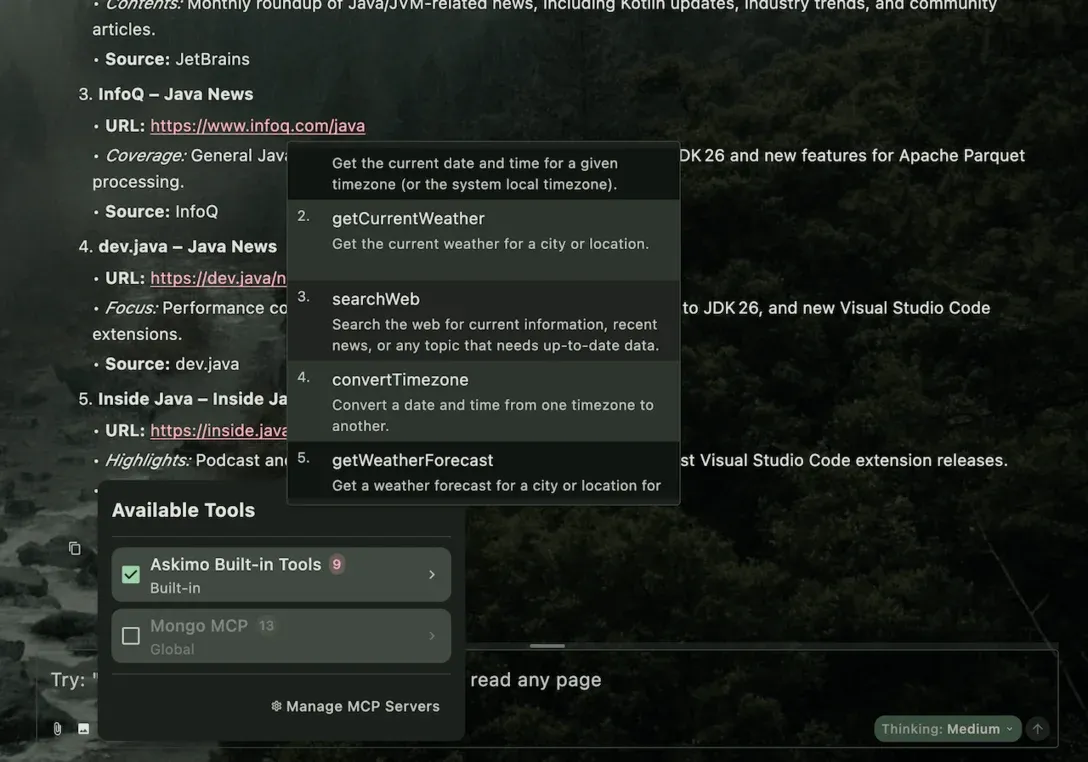
For best results, ask the AI to include links and cite sources in its response.
Test and Troubleshooting
Section titled “Test and Troubleshooting”Test fails
Section titled “Test fails”- Confirm Web Search is enabled in settings.
- Re-check API key (Brave/Tavily) for typos or expired credentials.
- For SearxNG, verify the endpoint is reachable from your machine.
- If you use a proxy, ensure Askimo proxy settings are correct.
No useful results
Section titled “No useful results”- Use a more specific query.
- Switch to another backend and test again.
- Ask the AI to run web search with narrower keywords and a smaller scope.