

Custom Directives - Personalize AI Behavior
이 콘텐츠는 아직 번역되지 않았습니다.
Stop repeating yourself. A directive sets the AI’s tone, role, and rules once - and every message in that conversation automatically follows them. Whether you want a brutally concise debugger or a patient language tutor, directives make the AI work the way you think, not the other way around.
New to directives? Start here
Section titled “New to directives? Start here”If you’ve never used a directive before, here’s the simplest way to think about it:
A directive is like hiring a contractor and telling them your rules on day one. “Always send me a summary at the end. Never use jargon. Flag anything risky.” You say it once — they follow it for the whole job.
Without a directive, the AI starts fresh every message with no assumptions about you. With a directive, it already knows your preferences before you type a single word.
You don’t need to be technical to write one. Plain English works perfectly:
Keep your answers short. No bullet points. Talk to me like a friend.That’s a valid directive. That’s all it takes.
What Can You Do With a Directive?
Section titled “What Can You Do With a Directive?”A directive is a short instruction that runs silently before every message you send. Think of it as briefing your AI before the conversation starts.
| Without a Directive | With a Directive |
|---|---|
| “Explain closures in JS” → lengthy essay | “Always reply ≤ 5 lines, no fluff” → 4-line answer |
| “Help me debug this” → vague suggestions | “You are a senior Go engineer. Flag the root cause first.” → targeted answer |
| “Translate to French” → awkward formal tone | “Match the casual, friendly tone of the original” → natural translation |
How to Use a Directive
Section titled “How to Use a Directive”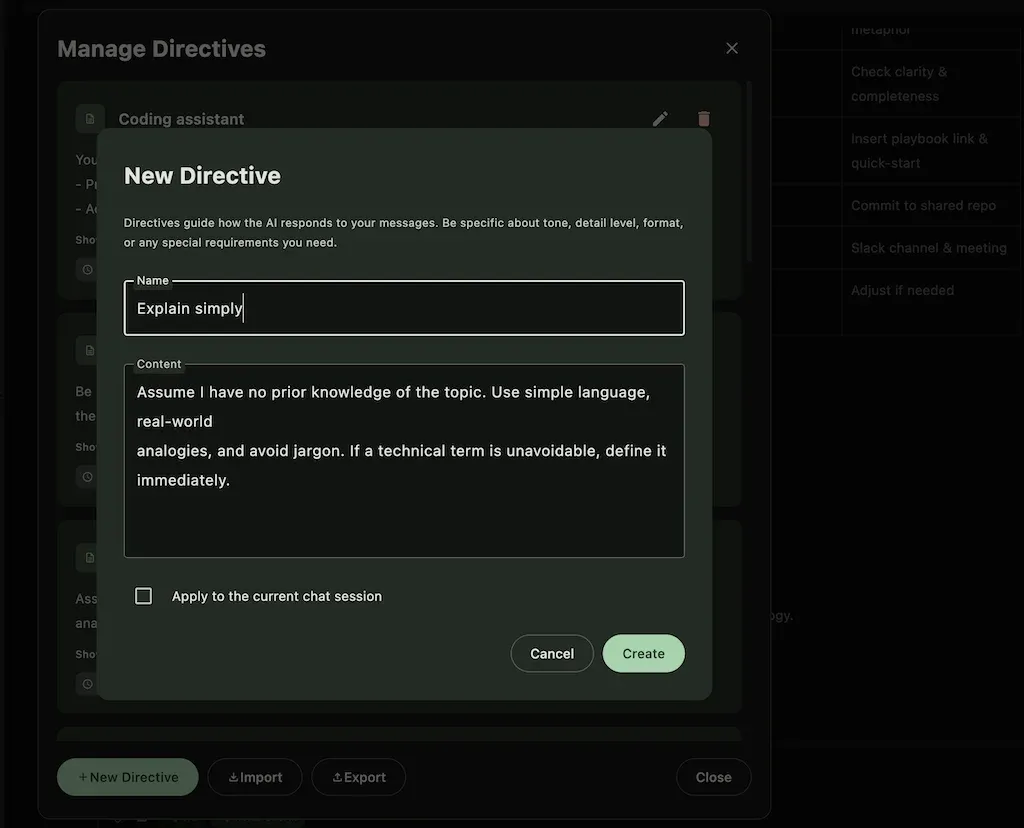
- Open any chat conversation
- Click the ✨ directive chip in the chat input bar (bottom of the chat)
- Pick a directive from your list - or create a new one
- The AI immediately applies it for the rest of that session
The directive stays active until you change it or set it to None. You can switch directives mid-conversation to change the AI’s behaviour on the fly.
Your first directive in 2 minutes
Section titled “Your first directive in 2 minutes”Not sure where to start? Follow these steps to create your very first directive.
Step 1 — Open a chat and click the ✨ directive chip in the chat input bar.
Step 2 — Click “New Directive” and give it a name you’ll recognise, for example: Concise answers.
Step 3 — In the instruction box, type something like:
Keep every reply under 5 sentences.Use plain language — no jargon.If you're unsure, say so.Step 4 — Save it and apply it to the current chat.
That’s it. Send your next message and notice the difference. You can edit the directive at any time and the change takes effect immediately.
Creating & Managing Directives
Section titled “Creating & Managing Directives”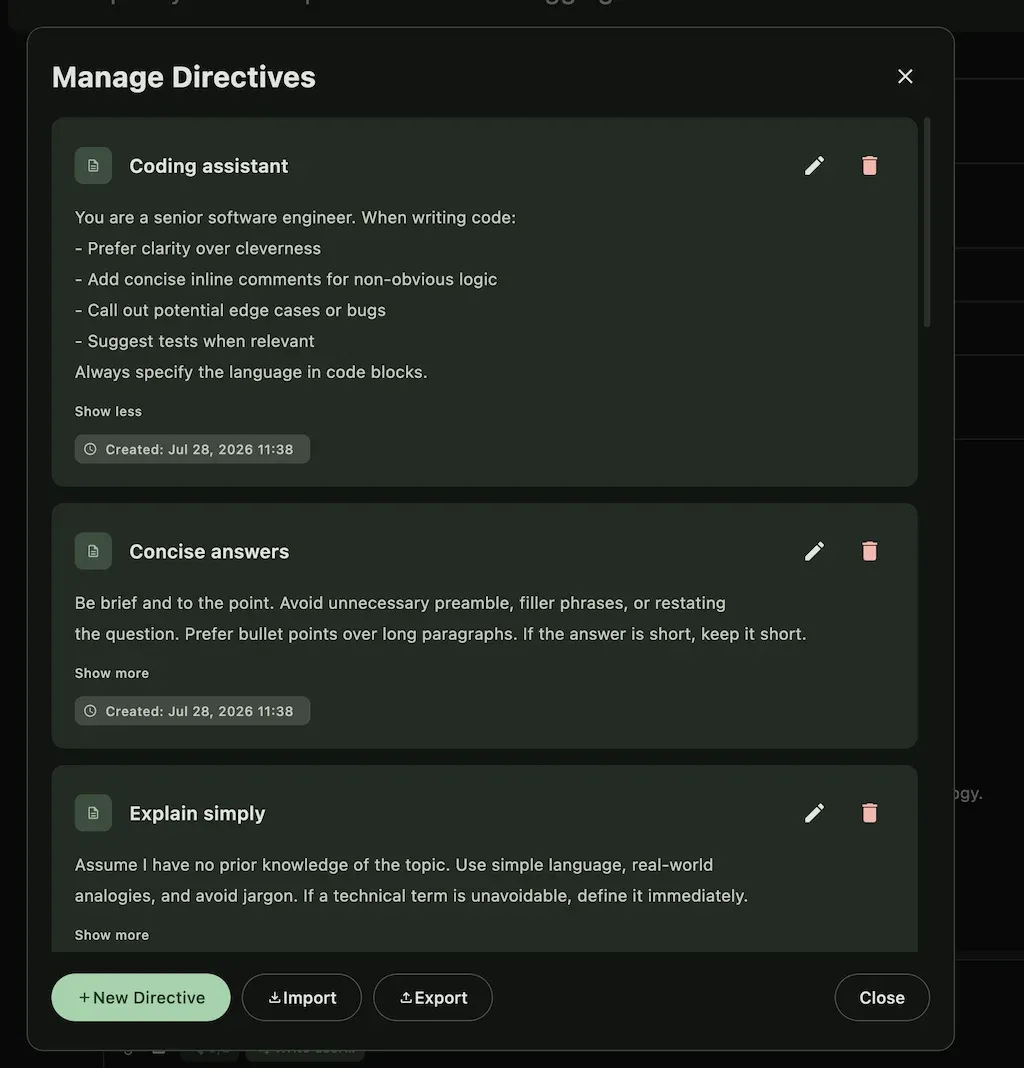
- New Directive - name it, write the instruction, optionally apply it to the current chat immediately
- Manage Directives - edit or delete existing directives from one place
Example Library
Section titled “Example Library”Copy any of these as a starting point and tweak to fit your workflow.
🔰 Beginner-friendly (great first directive)
Section titled “🔰 Beginner-friendly (great first directive)”Explain everything simply, as if I'm hearing about this topic for the first time.Avoid acronyms unless you define them first.Use short sentences and real-world examples.If I ask something unclear, ask me one question before answering.Good for: learning new tools, exploring unfamiliar topics, or when you just want plain answers without jargon.
🐛 Debugging Assistant
Section titled “🐛 Debugging Assistant”You are a patient debugging assistant.- Ask one clarifying question at a time if the problem is unclear- Always identify the root cause before suggesting a fix- Show the corrected code snippet, then explain what was wrong- Keep explanations under 5 lines✍️ Writing Editor
Section titled “✍️ Writing Editor”You are a copy editor for a tech blog.- Fix grammar and awkward phrasing- Keep the author's voice - don't rewrite, just polish- Flag anything ambiguous with [?]🌍 Language Tutor
Section titled “🌍 Language Tutor”I am learning Spanish at B1 level.- Always reply in Spanish first, then English in parentheses- Correct my grammar mistakes at the end of each reply- Keep sentences short📊 Data Analyst
Section titled “📊 Data Analyst”You are a data analyst. For every question:1. State your assumptions2. Show the formula or query3. Give the result4. Flag any data quality concerns📧 Email Drafter
Section titled “📧 Email Drafter”Draft professional emails only.- Subject line first- Max 3 short paragraphs- End with a clear call to action- Tone: warm but concise🎓 Study Assistant
Section titled “🎓 Study Assistant”You are a tutor helping me understand new concepts.- Explain things simply, as if I have no background in the topic- Use analogies and real-world examples- After each explanation, ask me one question to check my understanding📝 Meeting Summariser
Section titled “📝 Meeting Summariser”You summarise meetings and discussions.- Extract: key decisions, action items, and open questions- Format output as three labelled sections- Be concise - one line per item- No commentary, just the summary💡 Brainstorming Partner
Section titled “💡 Brainstorming Partner”You are a creative brainstorming partner.- Generate exactly 5 ideas per prompt, no more- Each idea in one sentence- After the list, pick the most unconventional one and expand on it- Challenge assumptions, don't just agreeTips for Writing Effective Directives
Section titled “Tips for Writing Effective Directives”- Lead with the role: “You are a …” sets context immediately and is the single most effective technique
- Be specific about format: say “reply in bullet points, max 5” not “be organised”
- Less is more: 3–5 clear rules outperform a 20-line essay - the AI follows shorter directives more consistently
- Name it clearly: a directive called “Debug – Go” is far easier to pick from a list than “My directive 3”
- Iterate: tweak based on actual responses - one small change can make a big difference
- One directive per context: rather than one giant all-purpose directive, keep separate ones for different tasks (writing, coding, research) and switch as needed
Common mistakes (and how to avoid them)
Section titled “Common mistakes (and how to avoid them)”These are the most frequent issues newcomers run into.
❌ Too vague
“Be helpful and nice.”
The AI is already trying to be helpful. This gives it nothing new to work with.
✅ Instead: “Always end your reply with a one-sentence summary of what you just explained.”
❌ Trying to do everything in one directive
“You are a coding assistant, writing editor, translator, and life coach. Answer in English and French. Always use bullet points unless I ask for prose. Be concise but also thorough…”
Long, contradictory directives confuse the model.
✅ Instead: Create one focused directive per task and switch between them.
❌ Forgetting to apply it You create a directive but forget to select it for the current chat — so nothing changes.
✅ Instead: After saving, tick “Apply to current chat” or select it from the ✨ directive chip in the chat input bar.
Frequently asked questions
Section titled “Frequently asked questions”Does the AI see my directive? Yes — your directive is sent silently at the start of every message. The AI reads it as context before processing your question. You won’t see it in the chat thread, but it’s always there.
Can I have multiple directives? You can create as many directives as you like, but only one can be active per conversation at a time. Switch between them freely using the ✨ directive chip in the chat input bar.
Does a directive affect all my chats? No. A directive is applied to a specific conversation. Starting a new chat begins with no directive unless you choose one.
What if the AI ignores part of my directive? This can happen with very long or contradictory instructions. Try shortening it and making rules more concrete (use numbers and actions, not adjectives).
Can I use a directive with Plans or RAG? Yes — see the section below.
Combining Directives With Other Features
Section titled “Combining Directives With Other Features”Directives work alongside Askimo’s other features - they’re not mutually exclusive:
- With RAG: pair a directive like “You are a technical writer” with a project knowledge base to get answers that are both grounded in your documents and formatted the way you want
- With MCP Tools: a directive like “Always confirm before executing any command” adds a safety layer on top of tool usage
- With Plans: directives set the AI’s baseline behaviour; plans define the steps - together they give you full control over both style and workflow
Explore More
Section titled “Explore More”- RAG: Chat with your documents - Ground AI answers in your own files
- MCP Tool Integrations - Connect AI to external tools and services
- AI Plans - Automate multi-step AI workflows