

OpenAI-Compatible Provider - Connect Any OpenAI-Compatible API to Askimo
Este conteúdo não está disponível em sua língua ainda.
OpenAI-Compatible Provider
Section titled “OpenAI-Compatible Provider”Askimo supports any server that implements the OpenAI-compatible API, giving you the flexibility to connect cloud-hosted providers, local inference servers, or self-hosted gateways that expose an OpenAI-style /v1 endpoint.
What is an OpenAI-Compatible Server?
Section titled “What is an OpenAI-Compatible Server?”Many AI tools and services implement the OpenAI REST API format, meaning they accept the same request structure as api.openai.com/v1. Examples include:
- Cloud providers - OpenRouter, Together AI, Groq, Mistral AI, Fireworks AI
- Local inference servers - vLLM, llama.cpp, LocalAI
- AI gateways and proxies - LiteLLM, any custom proxy that forwards requests to an LLM backend
Why Use the OpenAI-Compatible Provider?
Section titled “Why Use the OpenAI-Compatible Provider?”- Broad compatibility - Connect any backend that speaks the OpenAI API format, whether cloud or local
- Flexible authentication - API key required for cloud-hosted endpoints, optional for local servers
- No vendor lock-in - Switch between providers without changing your Askimo workflow
Setting Up an OpenAI-Compatible Provider in Askimo
Section titled “Setting Up an OpenAI-Compatible Provider in Askimo”Required Configuration
Section titled “Required Configuration”-
Base URL - The full endpoint URL of your server, including the API version path (e.g.
/v1)For pre-configured cloud providers (OpenRouter, Together AI, Groq, etc.) this is filled in automatically when you select the template. For custom servers, enter it manually:
Server Base URL vLLM (local) http://localhost:8000/v1llama.cpp (local) http://localhost:8080/v1LiteLLM proxy http://localhost:4000/v1LocalAI http://localhost:8080/v1Any other server http://<host>:<port>/v1
- API Key - Authentication token for your server
- Required for cloud-hosted endpoints (e.g. OpenRouter, Together AI, Groq)
- Optional for local servers that do not enforce authentication. Leave blank if your server does not require it.
Step-by-step Setup
Section titled “Step-by-step Setup”- Start your server if using a local inference server (see examples below), or have your API key ready for cloud providers
- Select the provider in the footer of the Askimo app, or go to Settings > AI Providers
- Select OpenAI Compatible from the provider list - pick a pre-configured template or choose Custom for self-hosted servers
- Enter the Base URL including the API path (e.g.
https://openrouter.ai/api/v1) - Enter your API key if required, or leave blank for local servers
- (Custom servers only) Set the API Mode - Chat Completions (default) or Responses API - and the HTTP version (HTTP/1.1 for local servers, HTTP/2 for cloud)
- Askimo will automatically fetch the available models once the connection is established
Pre-configured Cloud Providers
Section titled “Pre-configured Cloud Providers”Askimo ships with built-in templates for popular cloud providers. When you select OpenAI Compatible in the provider picker, these appear as ready-to-use options - the Base URL is already filled in for you. All you need is your API key.
| Provider | What it offers | Get API key |
|---|---|---|
| OpenRouter | 300+ models - GPT, Claude, Llama, Gemini, Mistral and more via one API. Many models have a free tier. | openrouter.ai/keys |
| Together AI | Fast, affordable inference for 100+ open-source models. | api.together.ai/settings/api-keys |
| Groq | Ultra-fast inference for open-source models - Llama, Mixtral, Gemma and more. | console.groq.com/keys |
| Cloudflare AI | Run AI models on Cloudflare’s global edge network with Workers AI. | dash.cloudflare.com/profile/api-tokens |
| NVIDIA NIM | Run optimized AI models on NVIDIA’s cloud GPU infrastructure. | build.nvidia.com |
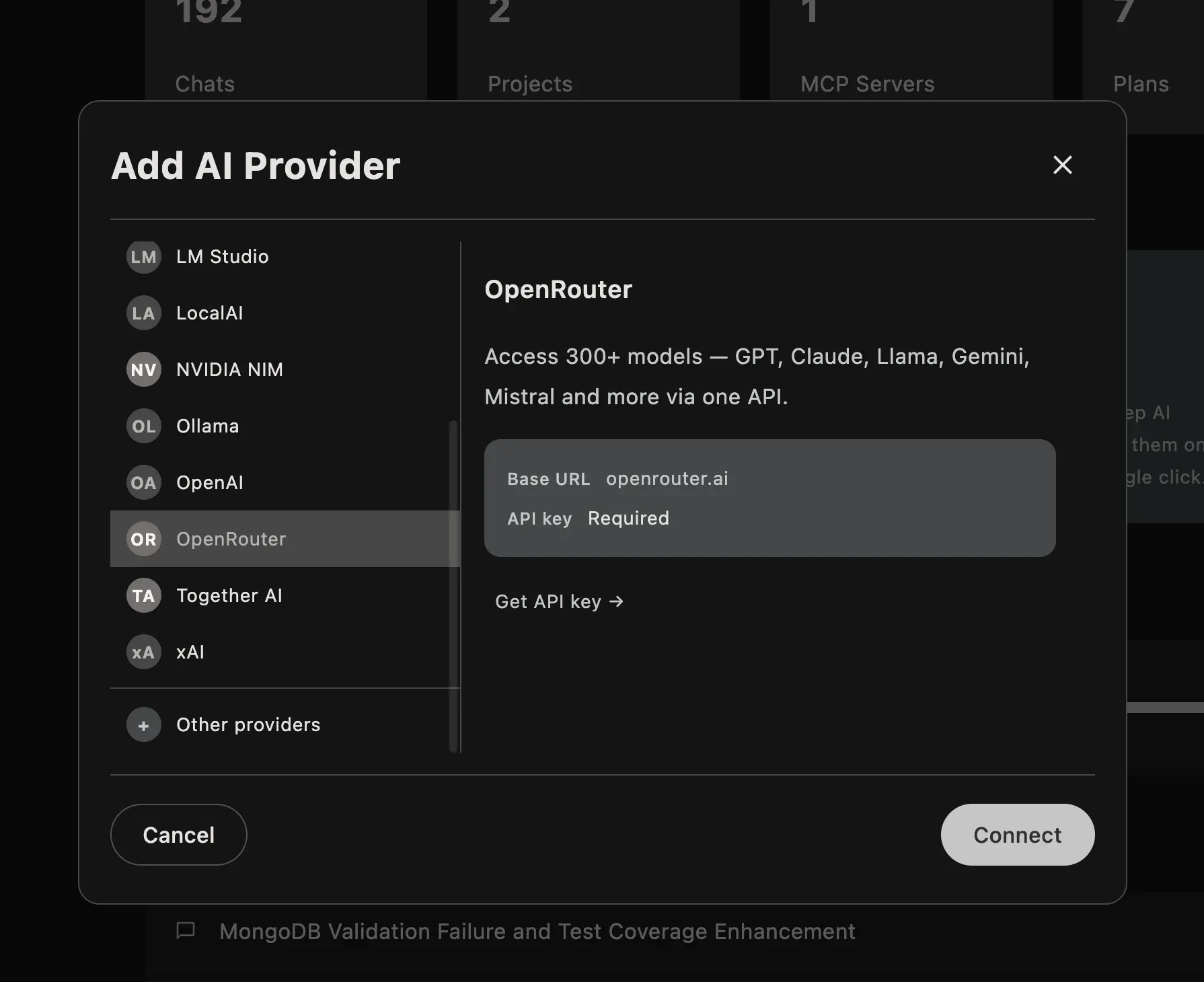
For Cloudflare AI, you also need to replace {ACCOUNT_ID} in the Base URL with your Cloudflare Account ID (found in your Cloudflare dashboard).
Custom / Self-hosted Servers
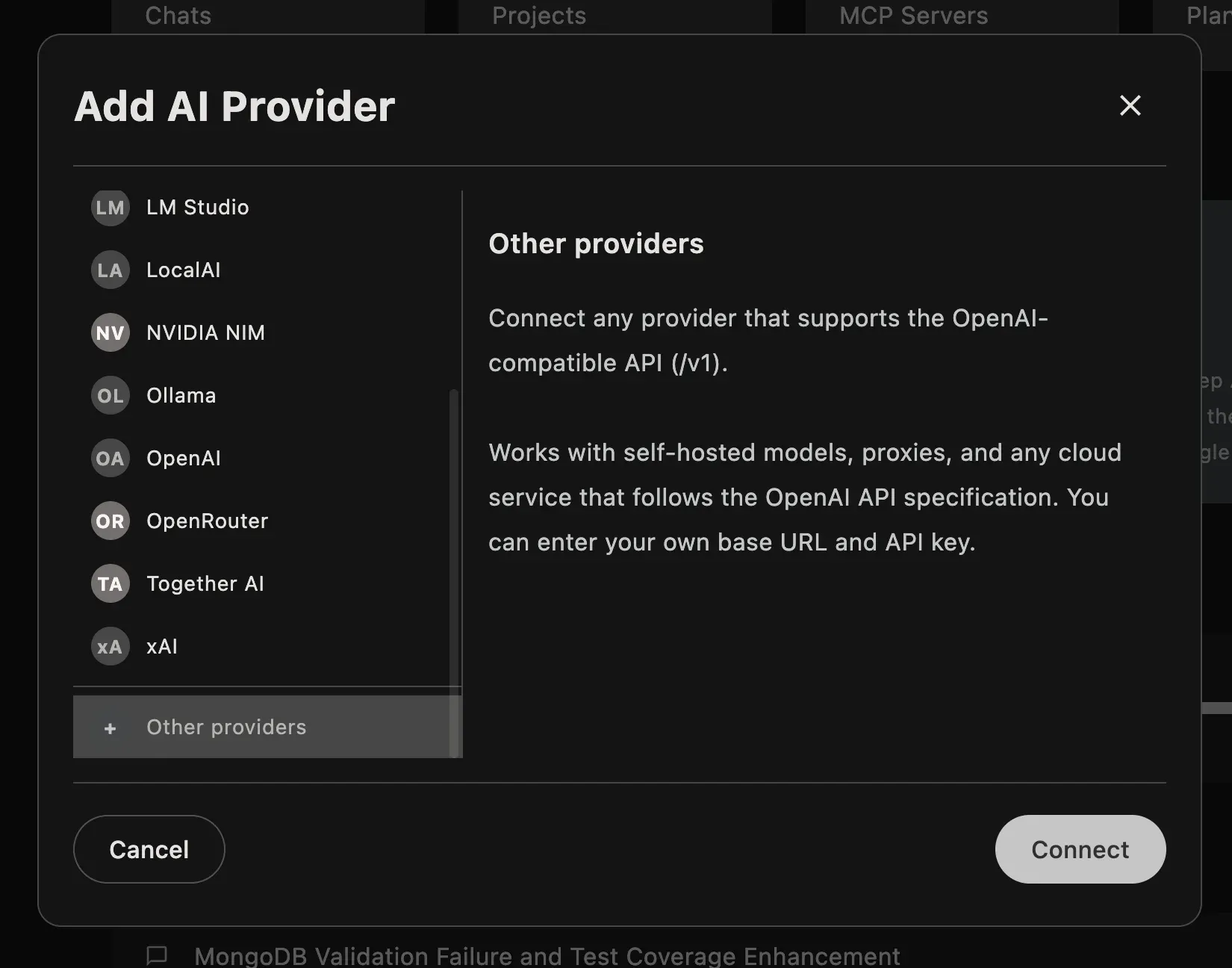
Section titled “Custom / Self-hosted Servers”Use the Custom option when connecting to a self-hosted or local inference server. Open the Add AI Provider dialog and select “Other providers”
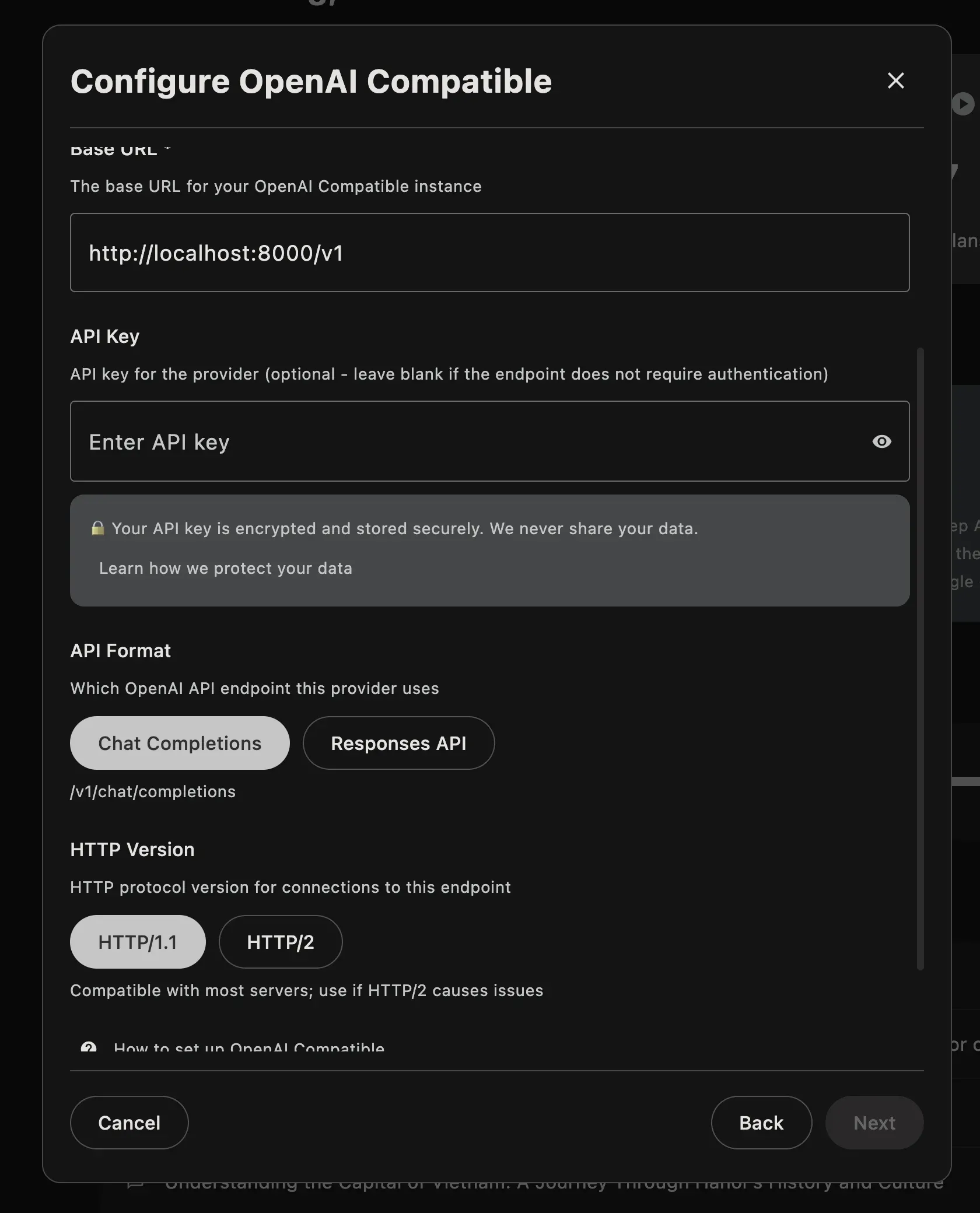
Enter the Base URL manually and leave the API key blank if your server doesn’t require authentication.
Unlike the pre-configured cloud templates, custom servers expose two additional settings you should configure manually:
API Mode - Completions vs Responses
Section titled “API Mode - Completions vs Responses”| Mode | When to use |
|---|---|
| Chat Completions (default) | Universal. Works with every OpenAI-compatible server. Use this if you’re unsure. |
| Responses API | Recommended when your server supports it. Unlocks advanced parameters: reasoning effort control and displaying the model’s reasoning/thinking steps inline in the chat. |
Chat Completions (POST /v1/chat/completions) is the legacy API and the safe default - virtually every server implements it. Responses API (POST /v1/responses) is the newer OpenAI format. If your cloud provider or local server supports it, switch to Responses API to get the most out of Askimo’s features.
HTTP Version
Section titled “HTTP Version”| Setting | When to use |
|---|---|
| HTTP/1.1 (default) | Works with everything - local inference servers and most cloud APIs. The safe default. |
| HTTP/2 | Modern cloud providers that support multiplexing (e.g. OpenRouter, Groq, NVIDIA NIM). Can improve performance for concurrent requests. |
Local servers (llama.cpp, LocalAI, LM Studio, vLLM) do not support HTTP/2 - keep the default HTTP/1.1 for these. Switch to HTTP/2 only if you know your cloud provider supports it.
# Start vLLM with a modelpython -m vllm.entrypoints.openai.api_server \ --model mistralai/Mistral-7B-Instruct-v0.2 \ --port 8000Base URL: http://localhost:8000/v1 · API Mode: Chat Completions · HTTP: HTTP/1.1 (default)
llama.cpp server
Section titled “llama.cpp server”# Start llama.cpp server./server -m your-model.gguf --port 8080Base URL: http://localhost:8080/v1 · API Mode: Chat Completions · HTTP: HTTP/1.1 (default)
LiteLLM proxy
Section titled “LiteLLM proxy”LiteLLM acts as a unified gateway — it exposes a single OpenAI-compatible endpoint and routes requests to any backend (OpenAI, Anthropic, Gemini, Ollama, AWS Bedrock, Azure, and more).
# Start LiteLLM proxy (single model, quick test)litellm --model ollama/llama2 --port 4000Base URL: http://localhost:4000/v1 · API Mode: Chat Completions · HTTP: HTTP/1.1 (default)
LocalAI
Section titled “LocalAI”# Start LocalAI with a model directory./local-ai --models-path ./models --port 8080Base URL: http://localhost:8080/v1 · API Mode: Chat Completions · HTTP: HTTP/1.1 (default)
Troubleshooting
Section titled “Troubleshooting”Could not connect to the provider?
- For cloud providers, confirm your API key is correct and has sufficient credits
- For local servers, make sure the server is running and accessible
- Verify the URL includes the full API path (e.g.
/v1), not just the host and port - Check that no firewall is blocking the port
No models showing after connecting?
- Confirm the server exposes a
GET /v1/modelsendpoint - Some minimal servers do not implement
/v1/models- check your server’s documentation - For llama.cpp, make sure you started the server with
--portand that it is fully loaded before connecting
SSL / certificate errors?
- For local HTTP servers, ensure the URL starts with
http://nothttps:// - For self-signed HTTPS, configure your system to trust the certificate
Learn More
Section titled “Learn More”- Ollama provider guide - For local Ollama models
- LocalAI provider guide - For LocalAI self-hosted models
- LM Studio provider guide - For LM Studio local server