

Local LLM (Built-in) Setup for Askimo App
Ce contenu n’est pas encore disponible dans votre langue.
Local LLM (Built-in) Configuration
Section titled “Local LLM (Built-in) Configuration”Run local models entirely inside Askimo, no Ollama, LM Studio, or LocalAI install required. Askimo downloads a platform-matching llama-server binary and lets you search, download, and run Hugging Face GGUF models directly from the app.
Server Configuration
Section titled “Server Configuration”- Server URL: Managed automatically by Askimo
- Default:
http://127.0.0.1/v1(local reverse proxy in front of the runningllama-serverprocesses)
- Default:
- API Key: Not required
- Available Models: Any
.ggufchat or embedding model you download from Hugging Face inside Askimo
Setting Up Local LLM
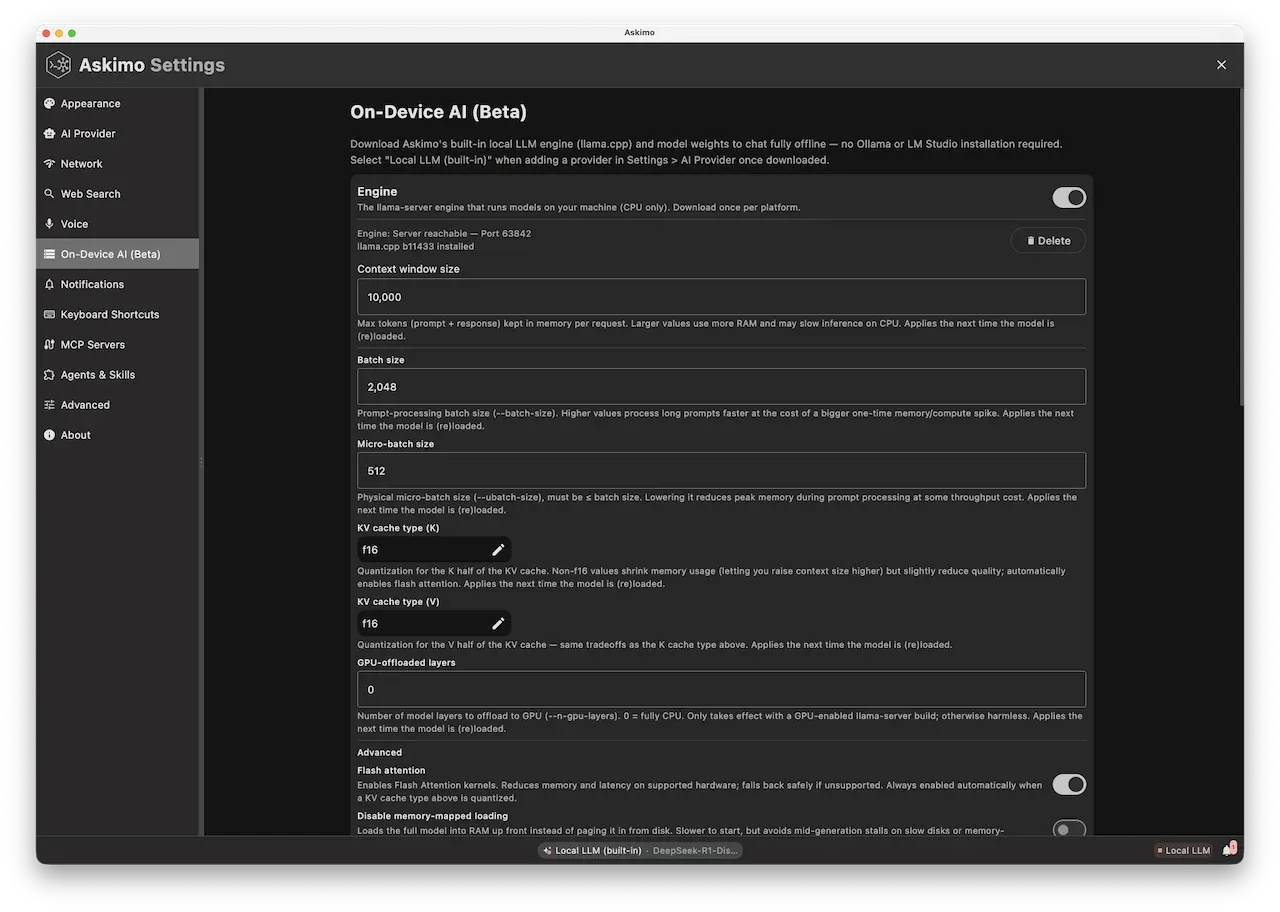
Section titled “Setting Up Local LLM”- Open Settings > Local LLM
- Flip the engine toggle on. Askimo downloads the
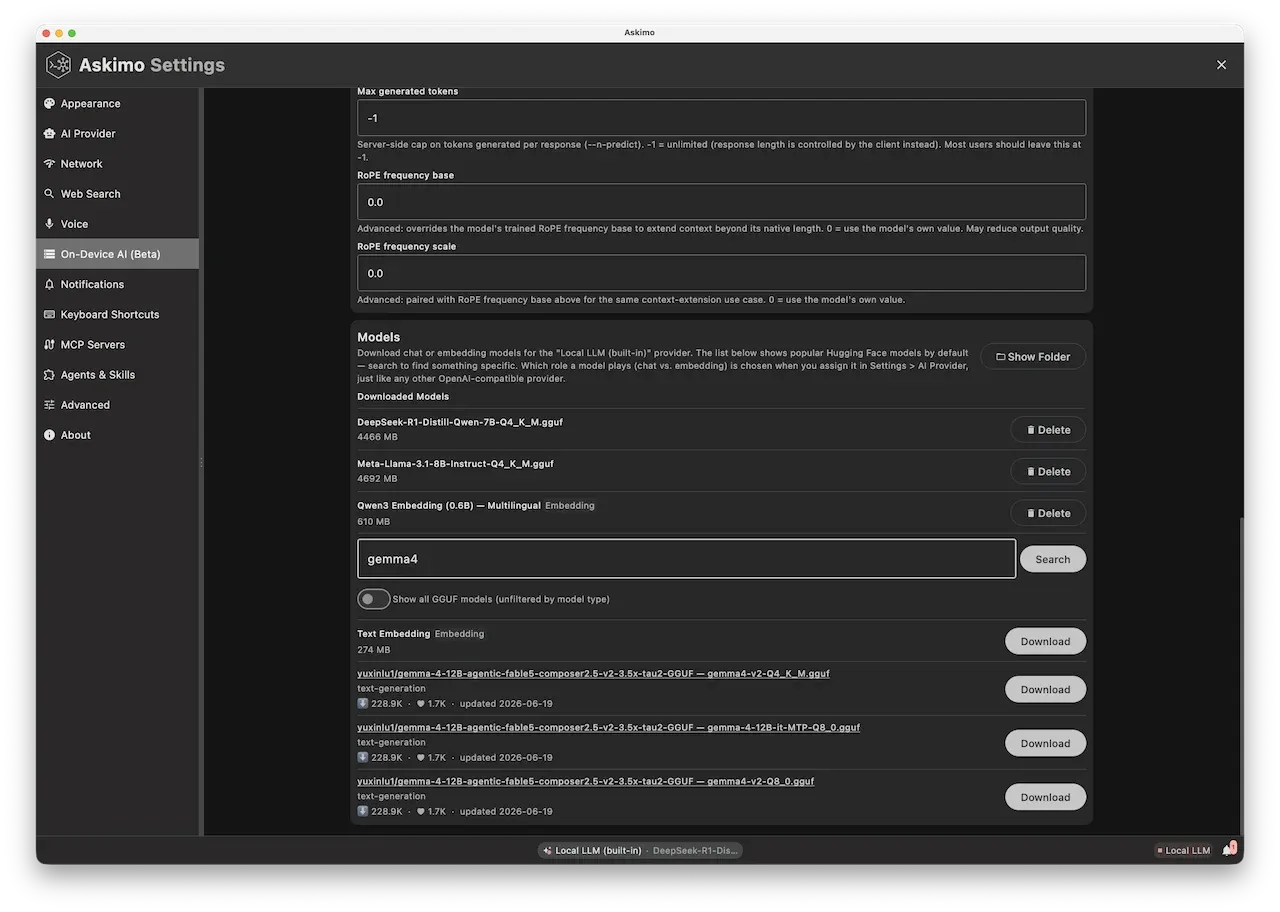
llama-serverbinary that matches your OS and architecture. - Go to the Models section and search Hugging Face for a GGUF model, or pick one from the default most-downloaded list
- Click download on the model you want. It’s saved to Askimo’s local models folder.
- Navigate to the “AI Providers” tab and select “Local LLM (built-in)”
- Pick the downloaded model from the model dropdown
- Click “Test Connection” to verify
Accessing Provider Settings
Section titled “Accessing Provider Settings”- Click on the menu bar
- Select “Settings”
- Navigate to the “AI Providers” tab
- Select “Local LLM (built-in)” from the provider list
Keyboard Shortcut: ⌘ + , (macOS) or Ctrl + , (Windows/Linux) then click “AI Providers”
Downloading Models from Hugging Face
Section titled “Downloading Models from Hugging Face”Settings > Local LLM > Models shows Hugging Face’s most-downloaded GGUF repos by default, with a search box for anything more specific. Each result lists the repo, file name, size, downloads, and likes pulled live from the Hugging Face API.
Chat models: any .gguf chat model works through llama-server, so there’s no curated list to pick from, search and download whatever fits your use case.
Embedding models: Askimo ships two vetted options, nomic-embed-text and Qwen3-Embedding, because getting the pooling strategy wrong for an embedding model silently breaks results rather than just degrading quality.
Once downloaded, a model shows up in the “Local LLM (built-in)” provider’s model picker right away, no restart needed.
Advanced Configuration
Section titled “Advanced Configuration”Askimo manages the llama-server process directly, so the full set of llama-server runtime flags is exposed in Settings > Local LLM instead of being hidden behind a wrapper:
- Context size (
--ctx-size): cap or raise how much conversation history and RAG context a model can hold - GPU offload (
--n-gpu-layers): push more or fewer transformer layers onto the GPU - KV-cache quantization (
--cache-type-k,--cache-type-v): quantize the key/value cache (e.g.q8_0instead off16) to cut memory use on long contexts - Batching (
--batch-size,--ubatch-size,--parallel,--cont-batching): tune prompt-processing throughput and concurrent requests - Memory behavior (
--no-mmap,--mlock): control whether the model is memory-mapped or pinned in RAM - RoPE scaling (
--rope-freq-base,--rope-freq-scale): adjust rotary position embedding parameters for extended-context models
Troubleshooting
Section titled “Troubleshooting”Engine Won’t Start?
- Check your internet connection; the first toggle downloads the
llama-serverbinary - Verify you have enough disk space for the binary and models
- Try toggling the engine off and back on
Model Not Loading?
- Confirm the
.ggufdownload finished in the Models section - Verify sufficient RAM/VRAM for the model size and quantization
- Try a smaller or more quantized model first
Cannot Connect?
- Ensure the engine toggle is on in Settings > Local LLM
- Confirm a model is selected in the “Local LLM (built-in)” provider settings
- Test with
curl http://127.0.0.1/v1/models
Slow Performance?
- Increase
--n-gpu-layersif a GPU is available - Use a more quantized model (e.g.
Q4_K_Minstead off16) - Lower
--ctx-sizeif you don’t need a large context window - Enable KV-cache quantization (
--cache-type-k,--cache-type-v)
“Context Length Exceeded” Errors?
- Raise
--ctx-sizein Settings > Local LLM for the model - Note that larger context windows use significantly more VRAM; increase gradually and watch for crashes
Learn More
Section titled “Learn More”- Run Local AI Without Ollama or LM Studio: Askimo’s Built-in LLM - Full walkthrough of the built-in engine and model browser
- Askimo: Ollama Desktop App & GUI for Llama 3, DeepSeek, Mistral & Local AI Models - How the built-in engine compares to using Ollama