

 Hai Nguyen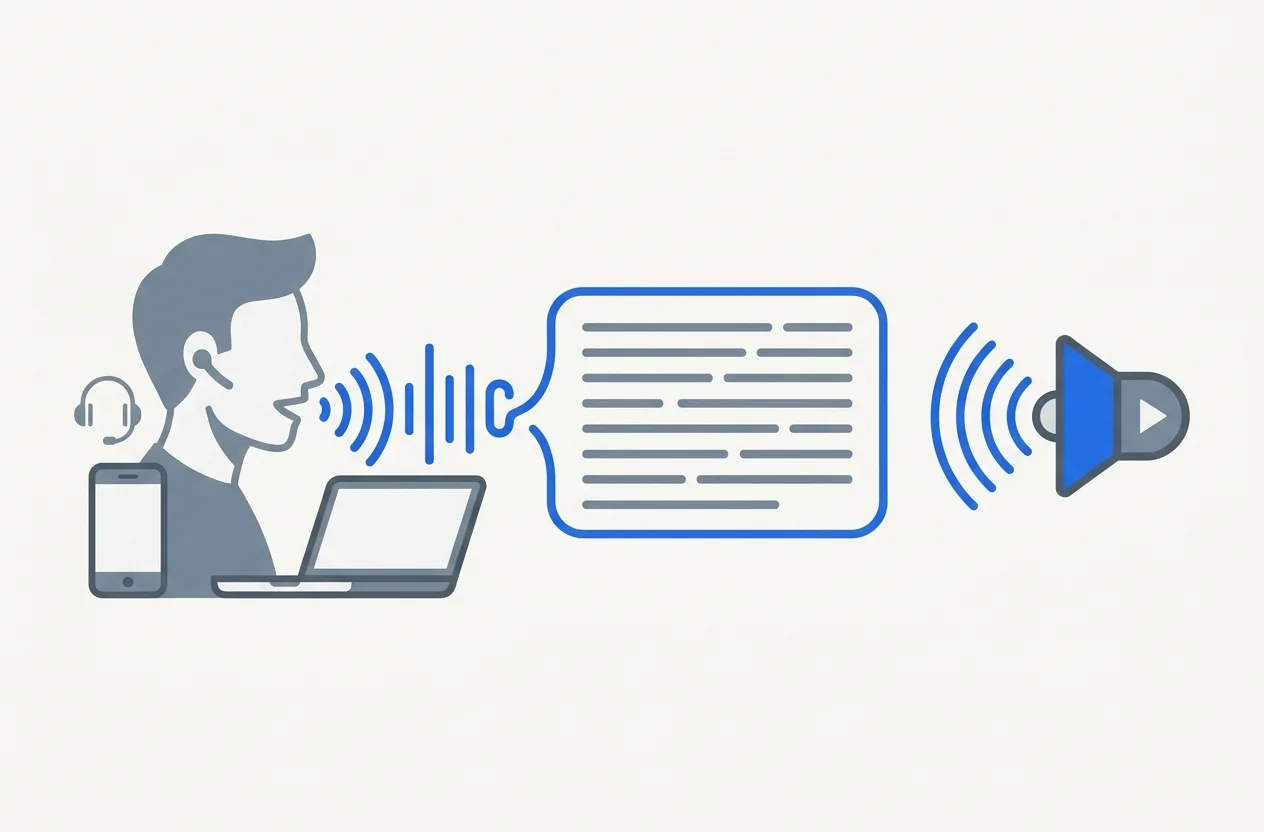
Typing every question gets old, and reading every answer isn’t always an option either - sometimes your hands are busy, your eyes are on something else, or you just think better out loud. Voice in Askimo Desktop adds both directions: speech-to-text (STT) dictation that transcribes what you say into the chat input, and text-to-speech (TTS) playback that reads AI responses aloud.
It’s the difference between “chatting with an app” and actually talking to one. Cook with both hands full and ask a question without touching the keyboard. Keep your eyes on the road while a response gets read to you instead of a screen. Rest your eyes, or your wrists, after a long day of screens. And for anyone who finds typing slow, tiring, or painful - whether that’s a temporary injury, a motor or visual impairment, dyslexia, or simply a keyboard that isn’t built for how you work - Voice means AI stays just as usable with your voice as it is with your hands.
Both sides are resolved independently of your chat provider, and independently of each other. You can chat with Gemini while dictating with OpenAI Whisper, or run speech-to-text and text-to-speech entirely offline with no API key, no server, and no audio ever leaving your machine.
New to Askimo? Start here: download the desktop app and read the Voice documentation for the full settings reference.
1. Dictation Has Three Flavors, Not One
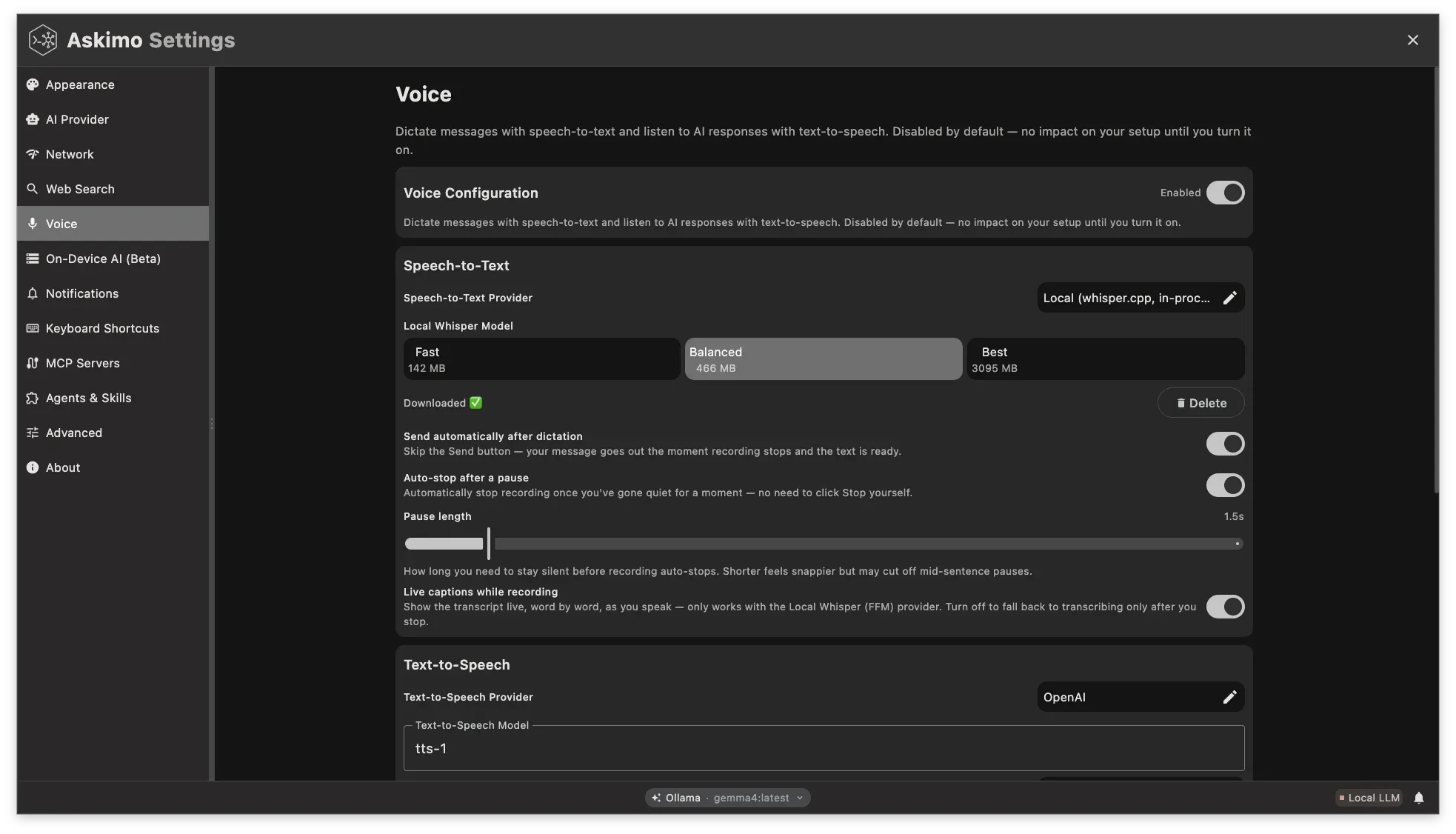
Settings → Voice lets you pick a Speech-to-Text provider, and it’s not just “cloud vs. local” - it’s three distinct tradeoffs:
- OpenAI: the most accurate option out of the box, great if you mumble, speak quickly, or mix languages mid-sentence. You’ll need an API key, an internet connection, and you’re billed per request.
- Local (in-process): everything happens right there on your computer - no account, no internet, and nothing you say ever leaves your machine. Pick a model size once (Fast, Balanced, or Best, trading a bit of download size for accuracy) and you’re set up for good, completely free from then on.
- Local (server): for when you’d rather do the heavy lifting elsewhere - say, a beefier machine with a GPU sitting on your network - and just have Askimo send audio over to it instead of processing on your laptop.
For most people, the in-process option is the one worth trying first: there’s nothing to install or keep running, it costs nothing, and transcription quality holds up well even on the smaller, faster model.
2. Live Captions: Seeing Your Words While You’re Still Speaking
Most speech-to-text in chat apps works the same way: record, stop, wait, then see a transcript all at once. Askimo’s in-process whisper.cpp provider does something closer to Siri or Alexa’s live captions - a transcript that grows while you’re still talking, instead of only appearing after you stop.
That means no more staring at a blinking cursor wondering if the app actually heard you. You get instant, visible proof that dictation is working, so you can spot a misheard word and just repeat yourself right away instead of discovering a garbled message after the fact. It also makes dictation feel genuinely instant - by the time you finish your sentence, the text is basically already there, ready to review or send.
This live-captions experience is exclusive to the in-process whisper.cpp option, since it runs fully on your machine with nothing to wait on over the network. The cloud-based OpenAI option and the self-hosted whisper.cpp server still give you accurate transcripts, just after you stop talking rather than while you talk - the tradeoff for sending audio elsewhere.
If live captions aren’t available or are turned off, Askimo simply waits until you finish recording and then transcribes the whole thing in one pass, same as every other provider. You lose nothing by turning the toggle off - it’s a pure bonus on top of the fallback, not a requirement.
The toggle lives in Settings → Voice → Live captions while recording, on by default, and only has an effect when the in-process provider is selected.
3. Three Ways to Hear Responses Back
Text-to-speech mirrors the same “pick your tradeoff” approach:
- OpenAI: natural, pleasant-sounding voices (alloy, nova, onyx, and others) that are hard to tell apart from a real person - a small cost each time a response is read aloud.
- Local (Piper): near-OpenAI-quality voices running on your own hardware, free and fully offline once you’ve set up the server and picked a voice.
- System (built-in): your computer’s own built-in voice - already there on macOS, Windows, and Linux. Zero setup, zero cost, zero downloads, though it sounds noticeably more robotic than OpenAI or Piper.
The System option is the newest addition, and it’s the one to reach for if you just want responses read aloud right now with no setup at all: open Settings, pick it, done - no account, no server, nothing to download. It’s smart about edge cases too - your chosen voice and speaking speed carry over automatically, and if a voice you’d picked earlier is no longer available (say, after switching providers), it quietly falls back to your system’s default instead of failing on you.
Mix and match freely: in-process Whisper for dictation plus the System voice for playback gets you a fully free, zero-API-key, zero-server setup. Or keep OpenAI for accurate dictation while routing playback through a local Piper server so synthesized audio never leaves your machine.
4. Making It Feel Hands-Free
A few settings exist purely to remove manual steps once you trust the pipeline:
- Auto-send transcript - skips the “review before sending” step entirely. As soon as transcription finishes, the message sends itself: a full record → transcribe → send flow with no clicks in between.
- Auto-play responses - every completed AI response starts speaking automatically as soon as it finishes streaming, instead of waiting for you to click the 🔊 button.
- Keyboard shortcuts -
Cmd+Shift+M(Ctrl+Shift+Mon Windows/Linux) toggles dictation;Cmd+Shift+L(Ctrl+Shift+L) toggles playback of the last response. Both work without touching the mouse.
Synthesized audio is also cached in memory per message (bounded by max cached messages and max cache size (MB) in Settings), so replaying something you’ve already listened to - via the shortcut or the 🔊 button - doesn’t re-hit the TTS API or re-run a local synthesis pass.
5. Privacy Is a Property of Your Provider Choice
Voice is opt-in and invisible until you turn it on - nothing is recorded, transcribed, or synthesized before you enable it and either click a button or use a shortcut. Beyond that, how private your audio stays is entirely a function of which providers you picked:
- Local (whisper.cpp, in-process or server) for STT, and Local (Piper) or System (built-in) for TTS, keep both directions fully offline - no audio or response text ever leaves your machine.
- OpenAI for either direction sends the relevant data (your recorded speech, or the response text to be spoken) to OpenAI’s API, subject to their own data handling policies.
There’s no bundling here: you choose STT and TTS providers independently, so “fully local” or “cloud for one direction, local for the other” are both first-class setups, not workarounds.
Final Thoughts
Voice turns Askimo into a two-way conversation instead of a typing interface with text replies - and like the rest of Askimo, it’s built so “fully local” isn’t a second-class mode bolted on afterward. Whether you want OpenAI’s accuracy, a self-hosted server, or an in-process engine with live captions and zero setup, the pieces compose the way you’d expect.
If you’re also running models locally, this pairs naturally with Askimo’s built-in local LLM engine and Ollama support - chat, dictation, and playback can all stay on your machine at once.
- Download: https://askimo.chat/download
- Voice docs: https://askimo.chat/docs/desktop/voice/
- GitHub: https://github.com/askimo-ai/askimo